Hiring an IT Support Technician in New Zealand
Published 07 August 2025 · Updated 14 July 2026
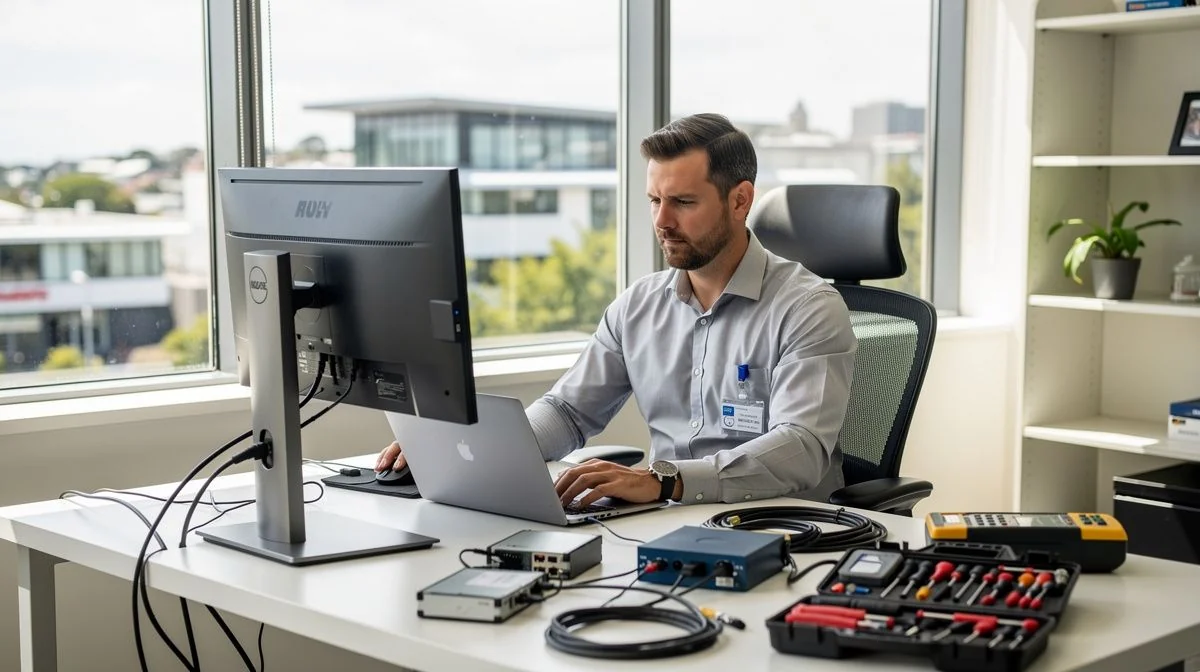
What an IT Support Technician does and when you might need one
An IT Support Technician is the person you call when your computer freezes, your network goes down, or your printer refuses to cooperate. For businesses, they keep the digital wheels turning — maintaining servers, managing user accounts, setting up new hardware, and troubleshooting software issues. For home users, they might help with virus removal, internet setup, or recovering lost files.
You might need an IT Support Technician if you're a small business without an in-house IT team, if you're a sole trader relying on your computer for daily work, or if you run an organisation that needs occasional technical help. They're also valuable when you're setting up a new office, migrating to the cloud, or responding to a security incident.
In New Zealand, IT support covers a huge range — from one-person operations offering remote help, to larger firms that provide managed services. The level of support you need depends on your technical comfort, the complexity of your systems, and how critical uptime is to your work.
Qualifications, certifications and industry bodies in New Zealand
Unlike trades such as electrical or plumbing, IT support is not a licensed profession in New Zealand. That means anyone can call themselves an IT Support Technician. However, reputable technicians hold recognised qualifications and certifications that demonstrate their competence.
New Zealand qualifications
- New Zealand Certificate in Information Technology (Level 5) — offered by many polytechnics and institutes of technology, this is a common entry-level qualification covering IT fundamentals, networking, and technical support.
- New Zealand Diploma in Information Technology (Level 6) — a more advanced qualification that delves deeper into network management, cybersecurity, and systems administration. Many technicians use this as a stepping stone to specialist roles.
- Bachelor's degrees in IT, computer science, or information systems from NZ universities (University of Auckland, Victoria University of Wellington, University of Canterbury, Massey University, and others) are also common, especially among technicians aiming for senior or consultancy work.
Industry-recognised certifications
International vendor certifications are widely respected in New Zealand. The most relevant ones include:
- CompTIA A+ — the industry standard for entry-level IT support. It validates knowledge of hardware, networking, mobile devices, and troubleshooting. Many NZ employers list this as a minimum requirement.
- CompTIA Network+ — useful for technicians who handle network issues, covering TCP/IP, routing, and network security.
- Microsoft Certified: Modern Desktop Administrator Associate — relevant if you use Windows environments, as it covers Windows 10/11 deployment and management.
- Cisco Certified Network Associate (CCNA) — for technicians working with networking equipment, though this is more common in specialist roles.
- Apple Certified Support Professional (ACSP) — valuable if your workplace primarily uses Apple hardware.
Professional bodies
The Institute of IT Professionals New Zealand (IITP) is the main professional body for IT practitioners in NZ. While membership is voluntary, it offers the Chartered IT Professional (CITP NZ) credential, which signals a commitment to ethical practice and ongoing professional development. Asking if a technician is an IITP member can be a useful check.
For cybersecurity-specific support, look for certifications like CISSP or the Certificate in Cybersecurity offered by some NZ providers, but for general IT support, CompTIA A+ and an NZ diploma are the standard benchmarks.
How to choose the right IT Support Technician
Because the field is unregulated, you need to do some vetting. Start by clarifying exactly what you need: do you require on-site visits, remote support, or a managed service that covers everything? That will narrow down the type of technician or company you approach.
Key questions to ask
- What certifications or qualifications do you hold? Look for at least a CompTIA A+ or an NZ Certificate in Information Technology Level 5.
- Do you have experience with my type of setup? If you run a Mac-based business, a technician who only knows Windows may not be ideal.
- Are you insured? Professional indemnity and public liability insurance protect you if something goes wrong — such as data loss or accidental damage.
- Can you provide references from similar clients? A reputable technician should be able to share testimonials or put you in touch with past customers.
- What are your response times? For critical issues, you need a guaranteed response time (e.g., within 4 hours for urgent problems).
- Do you offer a service-level agreement (SLA)? An SLA formalises expectations around response times, coverage hours, and escalation procedures.
What to check before hiring
- Check their online presence — a professional website, active LinkedIn profile, and genuine Google reviews are good signs.
- Ask about their security practices: do they use encrypted remote connections? How do they handle backups? Do they have a data breach response plan?
- Verify that they are a registered company with the NZ Companies Office if they operate as a business.
Typical costs and pricing structures in New Zealand
IT Support Technician rates vary widely depending on experience, location, and the type of service. Here's a rough guide to common pricing models:
- Hourly rate (ad-hoc support): $80 to $150 + GST per hour is typical for a qualified technician. Premium rates apply for after-hours or emergency call-outs.
- Flat-rate per incident: Some technicians charge a fixed fee for common tasks like virus removal ($100–200) or setting up a new computer ($80–150).
- Monthly retainer (managed IT services): For businesses, a monthly fee of $150–$300 per user or device is common, covering proactive maintenance, monitoring, and helpdesk support. This is often the most cost-effective option if you have more than a handful of users.
- On-site call-out fee: Many technicians charge a call-out fee of $50–$100 plus the hourly rate for physical visits. Remote support is usually cheaper.
- Project-based pricing: For larger jobs like network setup or cloud migration, expect a fixed quote based on scope. This can range from $1,000 for a small office setup to $10,000+ for complex deployments.
Prices are higher in Auckland, Wellington, and Christchurch compared to smaller centres. Also factor in travel charges if you're in a remote area.
Red flags and what to avoid
Because anyone can hang out a shingle as an IT support provider, you need to watch for warning signs. Here are common red flags:
- No written contract or SLA. A professional will always provide a clear agreement covering scope, pricing, and responsibilities. Avoid anyone who works on a handshake alone.
- Vague or suspiciously low pricing. Too cheap often means corners cut — like ignoring security updates or using unlicensed software.
- Reluctance to explain technical issues in plain English. A good technician can explain what's wrong and what they're doing to fix it. Jargon-bombing is often a way to avoid accountability.
- No insurance. If they're not insured, you're liable for any damage or data loss they cause. Ask for proof of cover.
- Pressure to sign long-term contracts. While monthly retainers are standard, be wary of multi-year agreements with high exit fees.
- Unprofessional behaviour. Late arrivals, poor communication, or messy work environments often reflect the quality of their technical work.
- Refusal to provide references or testimonials. A lack of social proof is a major concern in a trust-based service.
Tips for getting the best results
Once you've hired a technician, a good working relationship depends on clear communication and realistic expectations. Here are ways to get the most out of your IT support arrangement:
- Write down clear priorities. Which issues are critical (e.g., server down, email outage) and which can wait? Share this list with your technician so they know your business's pain points.
- Provide good remote access. If you're comfortable, set up secure remote access tools (like TeamViewer or Splashtop) so the technician can fix issues without visiting. This saves time and money.
- Keep a log of issues. Note the date, time, error messages, and what you were doing when a problem occurred. This helps the technician diagnose faster.
- Ask about proactive maintenance. A good technician doesn't just fix what's broken — they'll recommend scheduled updates, backups, and security checks to prevent future problems.
- Set up regular check-ins. Even if nothing is wrong, a monthly 30-minute call to review system health can catch issues early.
- Have a backup plan. Discuss disaster recovery: how will you access critical data if your systems are down for a day? Ensure backups are tested regularly.
- Read the fine print on SLAs. Understand what's covered (e.g., support hours, response times) and what's excluded (e.g., hardware repairs, software licenses).
With the right technician, you'll have a trusted partner who keeps your technology running smoothly — leaving you free to focus on your work.

The ValueHub Team built this site because finding clear, unbiased financial information in New Zealand was harder than it should be. Every guide is based on real research — we compare the actual fees, terms, and fine print so you don't have to. Our tip: shop around every year, read the policy docs, and never assume loyalty gets you the best deal.— The ValueHub Team
Try our Calculators
Use these free tools to crunch the numbers:
KiwiSaver Fund Comparison
Compare fees, returns, and risk levels across every KiwiSaver fund from all 31 NZ providers.
Currency Converter — USD to NZD
Convert US Dollars to New Zealand Dollars instantly. See the latest exchange rate and 30-day trend.
Mortgage Repayment Calculator
Calculate your weekly, fortnightly, or monthly mortgage repayments. Free NZ mortgage calculator — try different rates, terms, and repayment frequencies.
Compound Interest Calculator
See how your savings grow with compound interest over time. Free NZ compound interest calculator with yearly, monthly, and weekly compounding options.
Term Deposit Calculator
Calculate your term deposit returns before you lock in. Compare interest earned across different terms and rates with ValueHub's free calculator.
Savings Goal Calculator
Calculate how long it will take to reach your savings goal — and what monthly deposit you need to get there. Free NZ savings planner.
Related Articles
Guide to Hiring a Land Surveyor in NZ
Learn how to hire a land surveyor in New Zealand. Qualifications, costs, red flags, and tips from industry experts. Know...
guideHiring a Lawn Mowing Service in NZ: Guide
Everything you need to know about hiring a lawn mowing service in New Zealand – qualifications, costs, red flags, and tip...